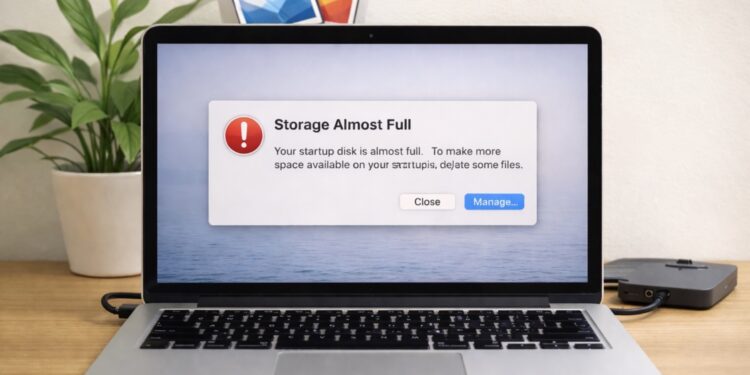
Running low on disk storage often irritates. Over decades of troubleshooting laptops, workstations and phones for individuals and organisations, I’ve found the few common culprits are temporary data, software leftovers, duplicates, uninstalled applications data, and large media archives, not the irreplaceable documents people worry about. The goal below is simple: recover usable space while keeping your important files intact and accessible.
Below are the practical steps to free up device storage. I reference the vendor guidance so you can follow the exact stepsin Windows, Microsoft, and macOS devices.
1) First, find out what’s using the disk space
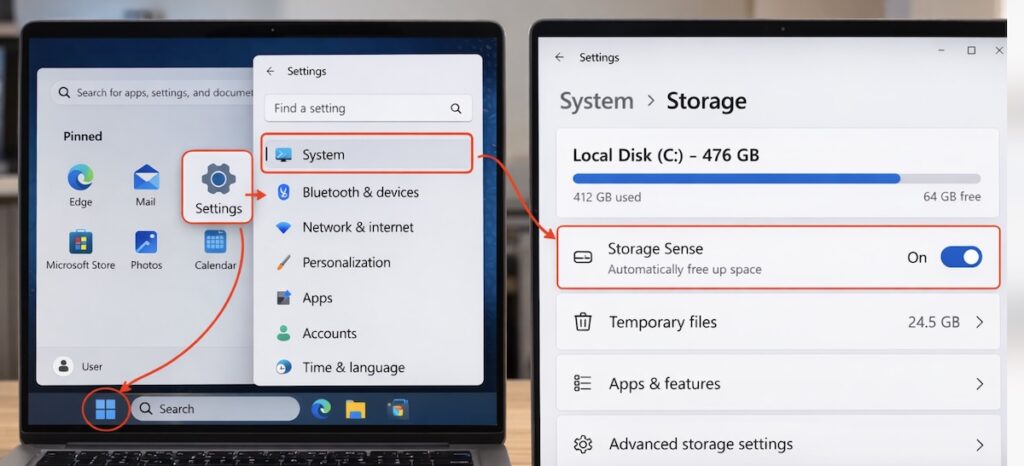
Don’t guess. Use a disk-usage viewer to see which folders and file types occupy the most bytes. On Windows, the Settings → System → Storage panel shows categories and recommended cleanup items. On macOS, the Storage Management view identifies large files and options to optimise storage. Use those reports to target effort where it pays off.
Sort by size and look for three things: very large single files, lots of mid-sized files in a single folder, and unexpectedly large system or cache folders.
2) Remove only unnecessary system files and temporary data
Operating systems and apps accumulate install caches, update packages, and temporary files that are safe to remove. Use the platform’s official cleanup utilities (they know what can be removed safely):
- Windows: Disk Cleanup / Storage Sense can remove temporary install files, Windows update leftovers and recycle-bin contents.
- macOS: the Storage Management tools identify large files and let you safely offload, compress, or move items.
These tools target non-persistent data (caches, installers, logs). Still, before you remove anything flagged “app data” or “downloads,” glance at the list so you don’t remove something you actually need.
3) Clear application caches (browser, media apps) carefully
Clearing the application and browser cache is a crucial maintenance step to improve performance and fix glitches. Browser caches and application caches can grow to multiple gigabytes. Clearing a cache frees space and usually causes only a one-time slowdown as the app rebuilds cache.
- For browsers, follow the particular browser’s instructions to clear only the cache (not saved passwords/bookmarks). For example, Mozilla’s guidance explains the steps and the consequences.
Clear cache when space is urgently needed; don’t habitually clear caches unless you need the space. Caches improve perceived performance.
4) Compress and archive, keep files, reduce footprint
If you have projects or media you rarely open, compress them into an archive (ZIP, 7z) and move the archive to a different location (same drive, external, or cloud). Compression reduces the footprint while preserving the files intact.
- All major OSes provide simple ZIP support (Windows has built-in zip/unzip). Use the OS facility or a reputable archiver and keep the archive on a secondary drive or cloud if possible.
When not to compress: already compressed media (most videos, JPEG images, many databases) won’t shrink much and the time to compress them isn’t usually worth it.
5) Move large, rarely-used files off the primary disk
Moving files rather than deleting them is the safest way to reclaim local space.
Options:
- External drives (USB 3.0+ HDD/SSD) for archives and photo/video libraries.
- Network Attached Storage (NAS) for multi-device access at home/office.
- Cloud storage for off-site access (ensure you understand versioning and retention policies).
Keep at least one copy of irreplaceable data off the machine (two copies total is better), and verify the transfer before deleting local copies.
6) Deal with duplicates conservatively
Duplicates are low-risk space thieves: copies of photos, downloads, or attachments. Use a duplicate-finder tool to scan, but always review matches before deleting. In enterprise support, I always cross-check by file date, path, and a quick preview before removing anything.
Export a list, or move suspected duplicates to a temporary folder, and only delete them after 7–14 days if nothing breaks.
7) Uninstall unused applications (and large games)
Productivity-based applications, especially games, design suites, and development environments, can occupy tens or hundreds of gigabytes. Uninstalling ones you don’t use reclaims space immediately and cleanly.
On Windows and macOS, sort apps by size in the system app manager to find the biggest candidates. Before removing, confirm you have any necessary license keys or install media (or that reinstalling from the vendor is possible).
8) Understand when NOT to defragment (and when to)
Defragmentation rearranges files for mechanical drives (HDDs) to reduce fragmentation; it can improve performance and, indirectly, space usage for very full drives. For solid-state drives (SSDs), traditional defragmentation is unnecessary and can add write wear; modern OS utilities will optimise SSDs differently. Use the OS “Optimise Drives” tool and let it decide based on drive type.
If you have an HDD, periodic defrag can help. If you have an SSD, rely on the OS’s built-in optimisation and avoid third-party defraggers that don’t detect SSDs.
9) Make downloads, mail attachments and messaging storage habits explicit
Many people never clean a Downloads folder; email clients often cache attachments; messaging apps can save multiple copies of the same image.
- Periodically prune Downloads.
- Configure mail to not keep attachments locally if you rely on server storage.
- In messaging apps, set media auto-download rules to “Wi-Fi only” and use “save to gallery” sparingly.
These behaviour changes reduce the rate at which clutter accumulates.
10) Build a safe, repeatable cleanup checklist
Here’s a practical checklist you can run through in 15–30 minutes that recovers space while keeping important files safe:
- Run a disk-usage report; identify the top 3 space consumers.
- Use the OS cleanup tool (Disk Cleanup/Storage Sense on Windows; Storage Management on macOS) and remove temporary files as recommended.
- Clear browser/app caches (only cache, not app data).
- Compress or archive rarely used project folders (ZIP) and move to external/cloud.
- Move large media libraries to external/NAS/cloud; verify integrity.
- Run a duplicate scan; manually verify before deleting.
- Uninstall big unused apps.
- If HDD, run defragmentation/optimisation; if SSD, allow OS optimise routine.
Safety and backup
- Back up before mass deletion or bulk moves. A quick external backup or a cloud snapshot saves grief.
- Verify transfers and archives. After moving or compressing, open a few files from the destination to confirm integrity.
Treat device storage changes like a small maintenance window: take a minute to confirm your actions.
Final notes
If your primary disk is small (e.g., a 128–256 GB laptop SSD), you’ll often need a hybrid storage strategy to avoid warning messages and unnecessary irritation: keep current projects local, and offload photo/video archives and older projects to external or cloud storage. If your drive is filling because of “one” very large dataset (VM images, media libraries), moving or archiving that dataset is the fastest, safest win.