
cxo voice
  • Business
  • Technology
    • Artificial Intelligence
    • Cloud
    • Telecom
    • Data Center
    • BPM
    • Blockchain
  • Finance
    • Banking
  • CXO Insights
  • Cyber Security
  • CXO Interviews
No Result
View All Result
  • Business
  • Technology
    • Artificial Intelligence
    • Cloud
    • Telecom
    • Data Center
    • BPM
    • Blockchain
  • Finance
    • Banking
  • CXO Insights
  • Cyber Security
  • CXO Interviews
No Result
View All Result
Leaders Talk and Latest Tech News | CXO VOICE
No Result
View All Result
Home How To

How to Recover Deleted Files on Mac (macOS)

Santosh Kumar by Santosh Kumar
December 21, 2024
How to Recover Deleted Files on Mac

Sometimes, we delete data to manage space for other files without realizing we have a copy of these files safely stored. Accidental file deletions in Mac can lead to significant data loss, whether through human error, software hardware malfunctions, or unwanted malware activity. We feel distressed when we need some important files but can not find them in the expected location. Then, we run folder to folder for the missing files. In this article, we have mentioned five ways you can try to recover deleted files from your Mac.

There are various methods you can try to recover deleted files on Mac, but the recovery depends on how they were deleted and your backup practices.

Step 1: Use Spotlight Search

How to Recover Deleted Files on Mac

Mac features Spotlight Search, an integral tool across its operating systems (macOS, iOS, iPadOS, and visionOS). This feature quickly helps you find various items in the device, including documents, pictures, music, applications, files, apps, and system settings.

To launch Spotlight on a Mac, use the magnifying glass icon in the menu bar or press the shortcut Command (⌘) + Spacebar. On iOS devices, swipe down from the Home screen’s center to access the search functionality.  

Enter the file name you are looking for in the spotlight search. You can narrow your search specificity by entering file types (e.g., “.docx,” “.pdf,” “.jpg”) to filter results accurately.

Step 2: Check the Trash Bin

In cases where the file isn’t located via Spotlight, look in the Trash Bin. Open the Trash folder, and if the deleted files are present there, right-click and select “Put Back.” This action will get the file restored to its original location from where it was deleted and will be removed from the trash bin.

Step 3: Time Machine Backup Recovery
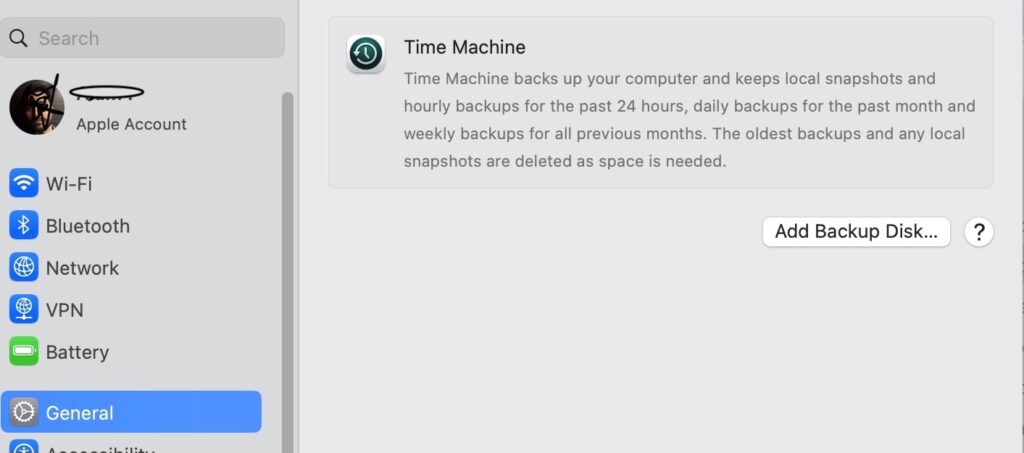
How to Recover Deleted Files on Mac

If deleted files are not available in the trash bin of your Mac, you need to check if the Time Machine backups are set up. If it is already ON and activated, you can proceed to recover deleted files on your Mac via the below-mentioned backup restoration process.

1. Connect the Time Machine backup drive.

2. Navigate to the folder where the file was initially located.

3. Then click the Time Machine icon in the menu bar and select Enter Time Machine.

4. Use the timeline on the right to traverse back to a point before the file was deleted.

5. Select the respective file and click “Restore.”

Step 4: iCloud Recovery

This option helps you recover your files if you have saved them on iCloud; you need to sign in with your Apple ID and check the iCloud Drive. You need to click on Account Settings, Scroll down to the Advanced section, and click Restore Files. Then, browse the list of files, select those you wish to restore, and click Restore.

Step 5: Use Data Recovery Software

If all the above-mentioned recovery attempts fail, consider using third-party data recovery software. (Note: Before downloading third-party recovery software, ensure their legitimacy, reliability, and security to avoid malware or virus attacks. You should download software from reliable sources.)

Data recovery software can perform deep scans of your Mac’s file system, identifying recoverable data and helping you recover deleted files on your Mac. If you are not able to use external data recovery applications, you should get expert help recovering your data from the drive.

Important Considerations:

Prompt attempts at file recovery increase the chance of success; new data can overwrite deleted files.

Avoided using the drive where deleted files/folders were initially located.

Regular backup practices using Time Machine or alternative solutions to avoid such distressing situations of data loss.

Also Read: GenAI is a double-edged sword for Defence and Offense in cybersecurity

Santosh Kumar

Santosh Kumar

Senior Writer at CXO VOICE. His email is [email protected]

Related Posts

Multi-Cloud
Cloud

How to Implement a Multi-Cloud Strategy

March 14, 2026
Storage
How To

Ways to Free Up Storage Without Deleting Important Files

March 7, 2026
Load More

More Articles

millionaires in 2025

The Global Wealth Boom: How Stock Markets Created Nearly 2 Million New Millionaires in 2025

by CXOVoice Editorial Team
June 6, 2026

RBI Foreign Investors

RBI Opens Doors to Foreign Investors With New Capital Inflow Measures

by Arshi Khan
June 5, 2026

Shadow AI

Shadow AI: The Invisible Threat Growing Inside Modern Enterprises

by Manpreet Singh
June 5, 2026

Bartley Richardson

CrowdStrike Appoints Former Nvidia Executive Bartley Richardson to Lead AI Strategy

by Deepa Sharma
June 4, 2026

Get Weekly CXO Intelligence.

Loading

CXO Insights

Shadow AI
Artificial Intelligence

Shadow AI: The Invisible Threat Growing Inside Modern Enterprises

by Manpreet Singh
June 5, 2026
traceability in Manufacturing
Opinion

From Barcode to Intelligence: How Traceability Is Redefining Manufacturing in India

by S R Srinivasan
May 29, 2026
AI data debt
Artificial Intelligence

AI Data Debt: The Risk Lurking Beneath Enterprise Intelligence

by Ashish Kumar
April 30, 2026
World Quantum Day
Cyber Security

The Quantum Inflection Point Is Already Here for India’s Cyber Landscape

by Harish Kumar
April 16, 2026

CXO Interviews

AI Skills
Artificial Intelligence

How AI is transforming skills, education, and workforce development in the future of work

>
1Point1
Business

How 1Point1 Solutions Is Betting Its Future on AI to Redefine BPM

>
NewgenONE
Business

Reimagining Enterprise Transformation: Varun Goswami on the Future of NewgenONE and AI-Driven Automation

>
Jagat Shah, Chairman & CEO of MITSUMI Group
Business

Leadership in Emerging Markets: Exclusive Interview with Jagat Shah, Chairman & CEO of MITSUMI Distribution

>

CXOVoice.com is a leading online publication for CXOs, entrepreneurs, senior leaders, developers, and industry professionals. We publish informed analysis, news reporting, expert commentary, and expert insights across enterprise technology, digital transformation, cybersecurity, data, AI, sustainability, and governance.

Connect with us

Easy Links

  • Cryptocurrency
  • Company Announcements
  • Event
  • Blockchain
  • Resources & Downloads
Loading
  • Home
  • About Us
  • Contact Us
  • Advertise
  • Privacy & Policy
  • Editorial Policy
  • Feedback

Copyright © 2026 CXOVoice - All Rights Reserved

Welcome Back!

Login to your account below

Forgotten Password?

Retrieve your password

Please enter your username or email address to reset your password.

Log In

Add New Playlist

No Result
View All Result
  • Home
  • Business
  • Opinion
  • Interview
  • Technology
  • Cyber Security
  • Artificial Intelligence
  • How To
  • Data Center

Copyright © 2026 CXOVoice - All Rights Reserved